The procedures below work most of the time, and there are only issues with PayPal for the most part. You may need to ask for increased access to PayPal or ping your product team leader to make the refund in PayPal.
Full Refunds
- *Be sure to check the date of payment to make sure that it’s within the 14-day refund window before proceeding with the next steps
- Then click on the Payment ID link in the Help Scout sidebar.
- The Help Scout sidebar of each product team mailbox may appear differently. For example, you may need to click on a section heading to view the payments. However, the Payment ID link will always be a clickable number within the payment or order records in the sidebar.
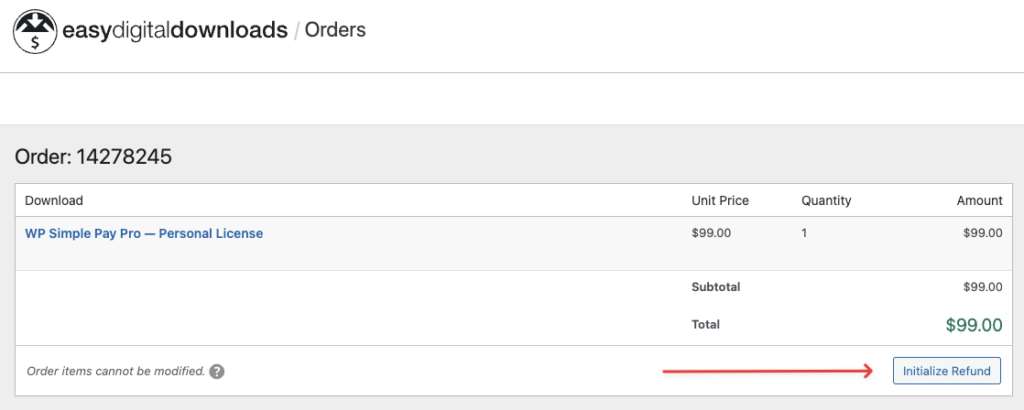
- This will open the Order page in EDD. In the Download section of the page, click the Initialize Refund button. This will open a modal window.
- In the modal window, check the boxes for “Product”, “Refund Charge in Stripe (or PayPal)”, and “Cancel Subscription”.
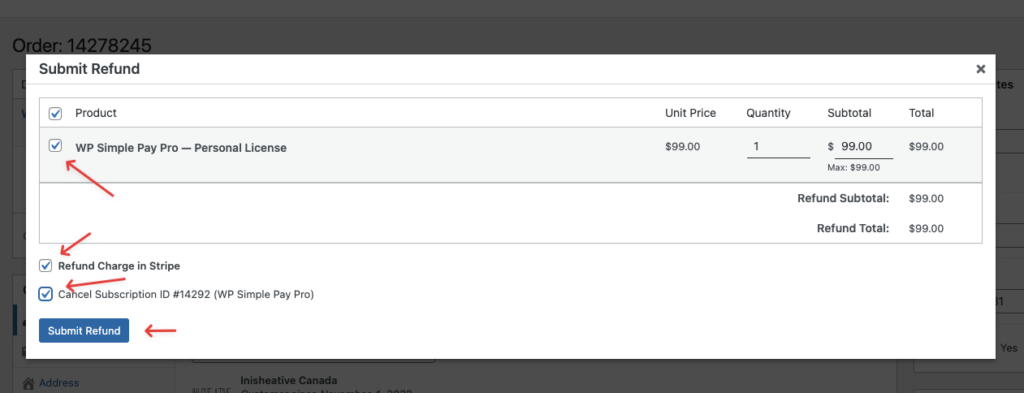
- Then click the “Submit Refund” button.
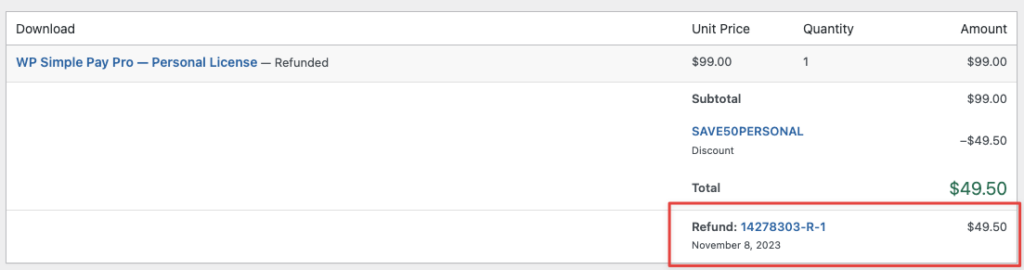
- The page should reload and the refund details will be visible on the order page.
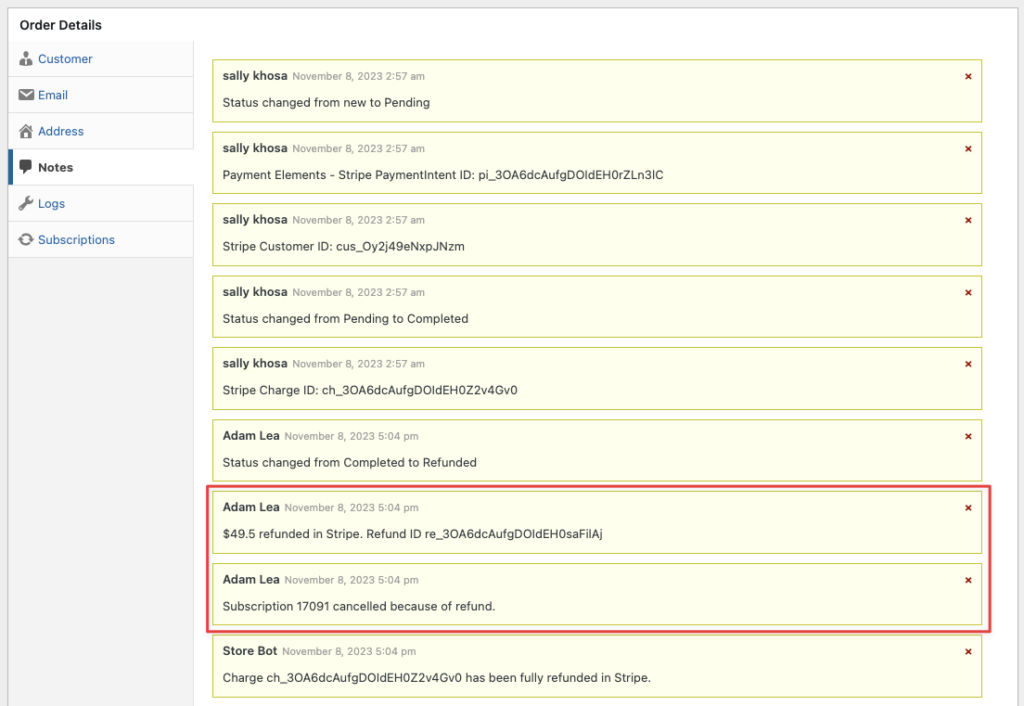
- Scroll down to the Order Details section and click the Notes tab. Check that there’s a Refund ID noted (similar will appear for both Stripe and PayPal). Sometimes, this same line of text appears twice, and that’s fine.
Partial Refunds
Partial refunds can now be handled completely in EDD

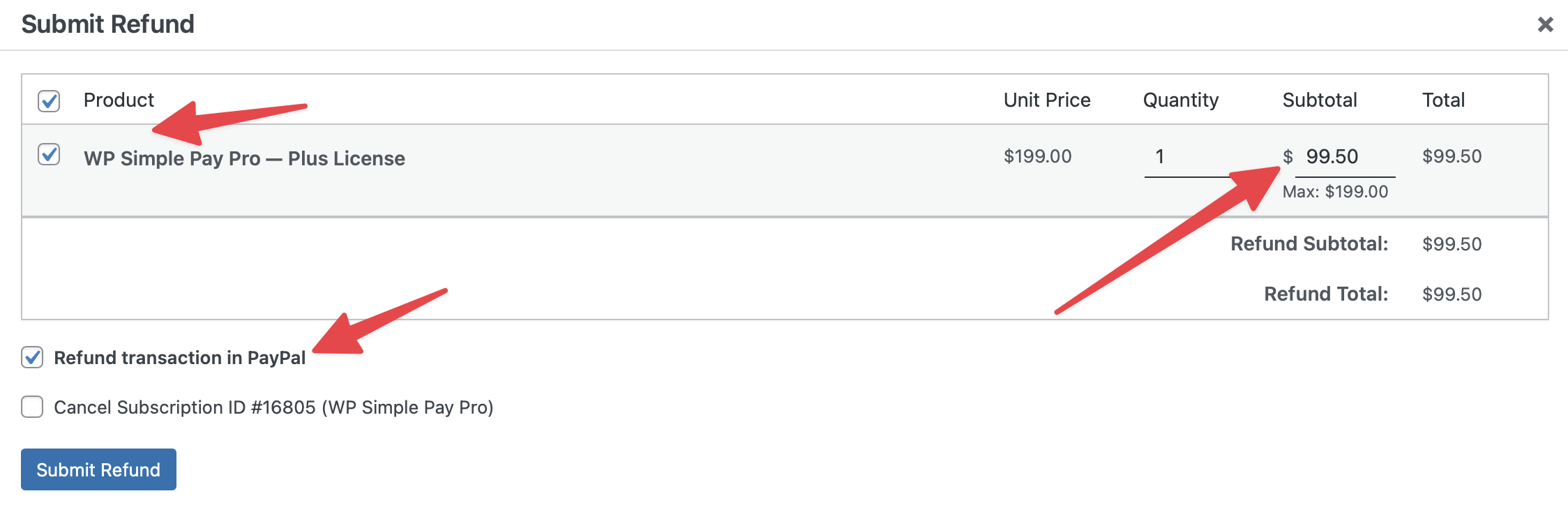

- You need to double-check that the payment is still Complete (or Renewal) status and not Refunded. EDD will occasionally set payments to Refunded on partial refunds. This will cause the customer to no longer have access to the downloads in the account area (or be able to use licensing).