As of November 25, 2025 we decided to ask users to cancel, buy a new license and issue a refund for the value/trouble.
Reasoning: the process below is hard to follow and prone to errors.
This may come up if:
– A customer requests to move their recurring subscription from PayPal to credit card.
– Or, if the customer has a grandfathered price plan and requests to move their subscription to a different PayPal account. This isn’t possible, so you can offer to move to Stripe/credit card as an alternative.
IN THE STRIPE DASHBOARD
- Manually create the customer in Stripe using their email address for both the Name and Account Email fields. Do not add any card details. https://dashboard.stripe.com/customers
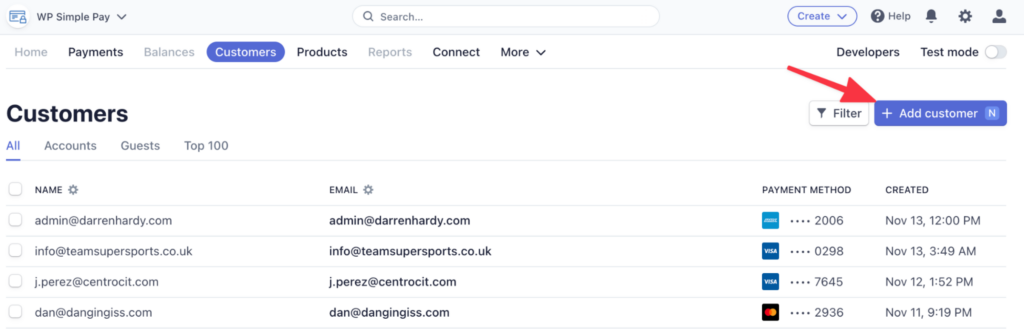
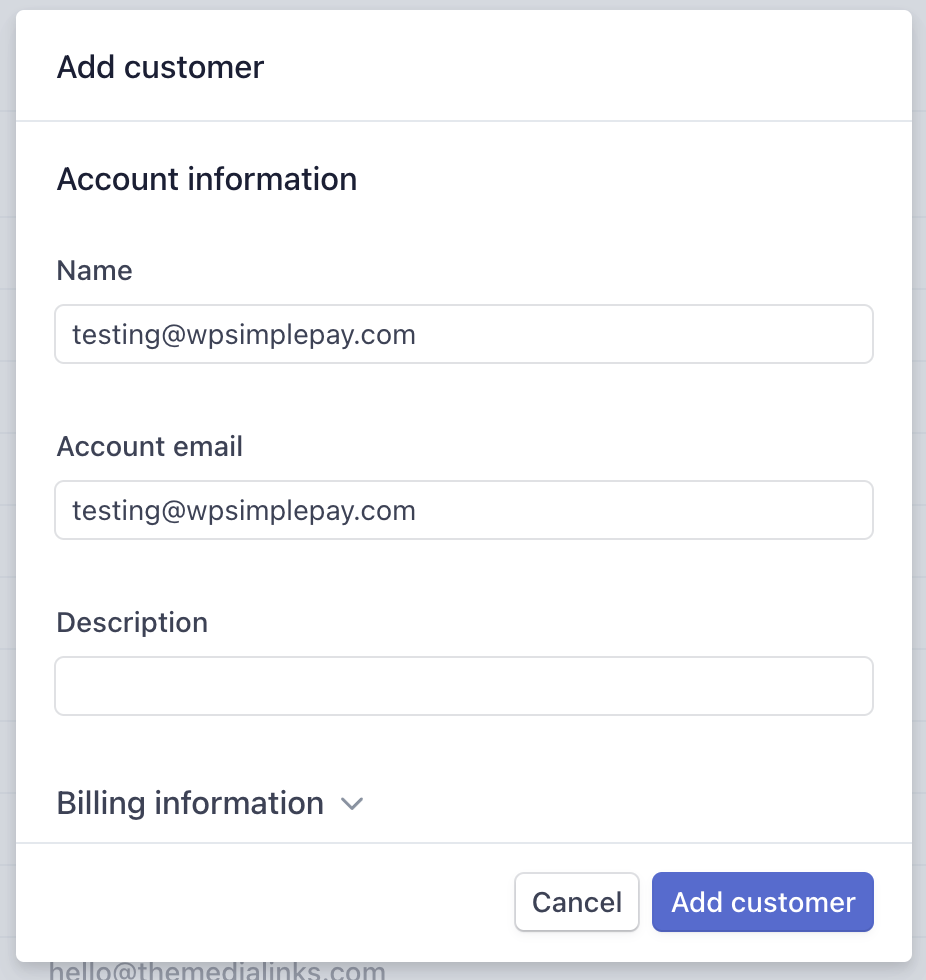
Click Add customer button
- Click the link in Stripe to create a subscription for the newly created customer. This would also be a good time to copy and paste the customer ID, which starts with cus_ – you’ll need this later.
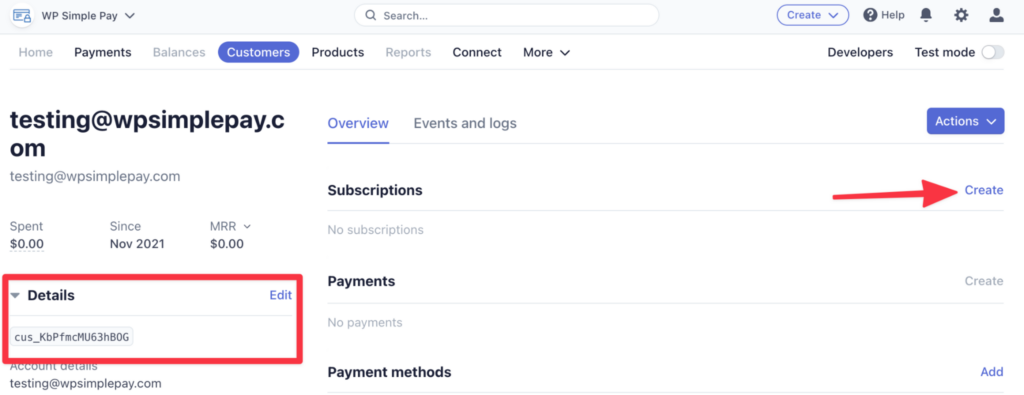
- You will be prompted to first add a plan. Be sure to select the plan with the price that matches what the customer had previously.
- In order to sync the next bill date in Stripe with the subscription’s renewal date, you will need to set a trial period. Stripe will ask for the trial period in a number of days. You can easily get this by looking up the subscription expiration date in EDD and Google `how many days until {expiration date here}`. Enter this number of days as the trial in Stripe. When you close the input field, Stripe should show you the actual date the trial ends – confirm this is the value you expected.
Once you’ve created the subscription, you will be returned to the customer screen. Here, click into the newly created subscription
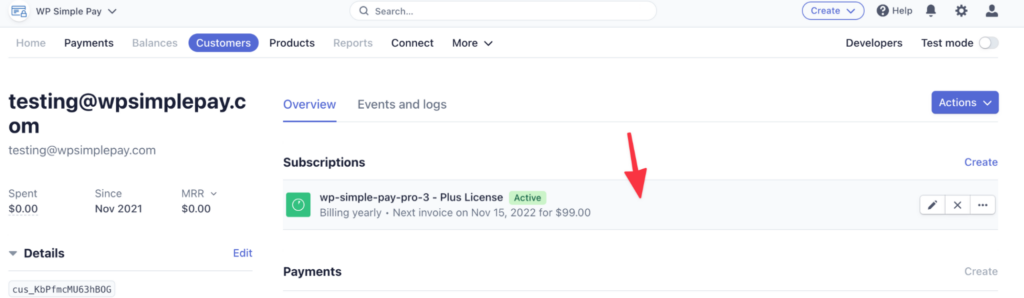
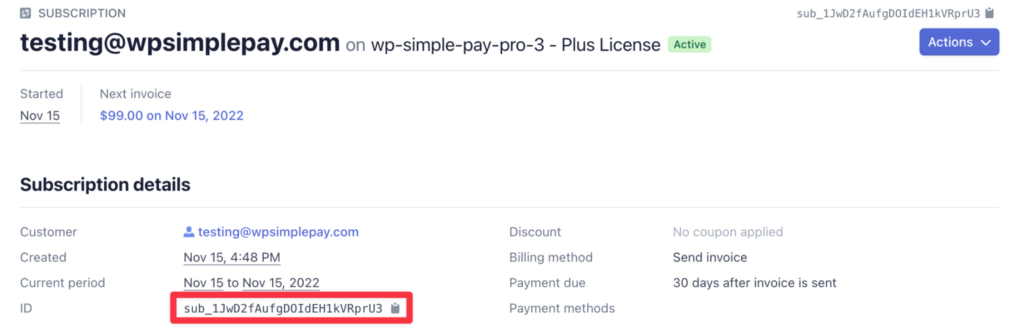
This will display the subscription ID that you will want to copy and paste for later use
IN WPSP ADMIN
- Once the plan is saved, edit the user’s subscription in EDD Recurring. Add a note to the subscription indicating that the subscription was moved from PayPal (note down old PayPal payment profile ID) to Stripe.
- Click the link for the Payment Profile ID – you’ll need this tab open in a minute! This will take you to the subscription’s page in PayPal.
- Edit the payment profile ID to add the new Stripe subscription, starting with `sub_`
- Click to `Update Subscription`.
- Return to the tab with the PayPal subscription (from step 6) and cancel the subscription. It’s important you do this step _after_ adding the new Stripe ID to ensure the customer does not receive the email informing them of their canceled subscription.
DEBUG BAR SQL COMMANDS
- Finally, you need to update the payment gateway associated with the “Initial Purchase ID”. This is necessary because EDD Recurring uses this gateway to figure out which gateway the whole subscription uses. You can do this via the Debug Bar in the SQL tab. (If you don’t see the Debug Bar you may need to reactivate the required plugins.) Run this query:
UPDATE wp_edd_orders SET gateway = 'stripe' WHERE id = <edd initial purchase id>;
Be sure to change the id = value to the value of the subscription’s “Initial Purchase ID”.
INSERT INTO wp_edd_customermeta VALUES(null, <edd customer ID>, '_edd_stripe_customer_id', '<stripe customer id>');
FINAL STEPS
Once all the steps have been completed, the customer will need to add card details to Stripe. They can do this themselves through their account area. They should navigate to the “Subscriptions” tab and click “Update Payment Method”. Instruct them to do this and let them know they will not be billed until their next renewal date.