NOTE: 6/11/2025, this article needs to be reviewed and possibly updated.
The dispute procedure is a little different for WPSP than detailed below, although the process below is the standard AM procedure and can be followed.
Stripe Disputes
To open Stripe payment disputes, click on the link below:
- WP Simple Pay Stripe disputes
- Make a note of how many disputes have been filed (so far) this week on the Billing Scorecard 2022
- Next, open the record of evidence submitted sheet to fill in after any evidence has been submitted (there is a note about this at the end of these instructions.
- In Stripe, make sure you’re on the “Needs Response” tab. All of these rows should have a yellow “Open” tag.
- Right Click on the first one (with the soonest “Respond By” date) to open details in a new tab.

- Using the email address look up the corresponding account in Easy Digital Downloads (EDD = wpforms/customers). This is easy to do for Stripe cases because their Stripe email and account email will be the same. Here is a link right to that spot for WP Simple Pay:
- Pull up the corresponding customer account in a new Help Scout conversation using the email address.
- Now, go back to the Stripe dispute:
If the payment was within 14 days of the dispute being submitted, go ahead and Accept the Dispute. - If the payment was more than 14 days before the dispute was submitted, then follow the Compiling Evidence steps.
- If you have not accepted the dispute by this stage, then go to the Compiling Evidence section.
Accepting the Dispute
- If there is one available, click the Refund button in the upper right corner. Otherwise, click “Accept dispute”.
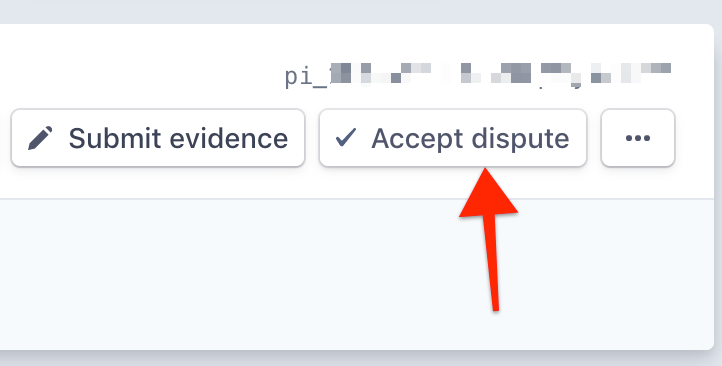
- Confirm that you want to accept the dispute.
- In Help Scout, open the payment page for this payment. In the right sidebar, set the Status dropdown to “Refunded” and check the Cancel Subscription box. However, do not check the box labeled “Refund Charge in Stripe” (you already went through this process in a different way, by accepting the dispute).
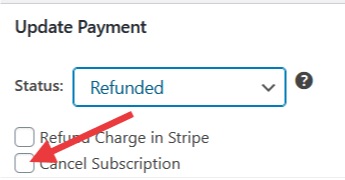
- Click the blue “Save Payment” button.
- Click into the subscription link at the top right of the payment page. Click on the Stripe Profile ID link and Hard Cancel the subscription in Stripe.
- Refresh your HS ticket to make sure it shows Cancelled and Refunded.
- That’s it. You’re done with that dispute. Close it, clear the email box of your new HS conversation so you can put the next email address in there and also click back on Customers in EDD. Now refresh your list of Needs Response page in Stripe and click into the next case.
Compiling Evidence (for Stripe and PayPal)
If the payment was more than 14 days before the dispute was submitted, then this is where you’re going to compile and submit evidence to Stripe or PayPal to make a case for why our charge is legitimate and should be paid by the customer.
- In the Help Scout ticket you have open, look for any previous conversations with this customer in the sidebar.
- If there are any, then look through them for any details that could be relevant to making your case. Keep those tickets open to include later.
- Now look at the EDD customer page.
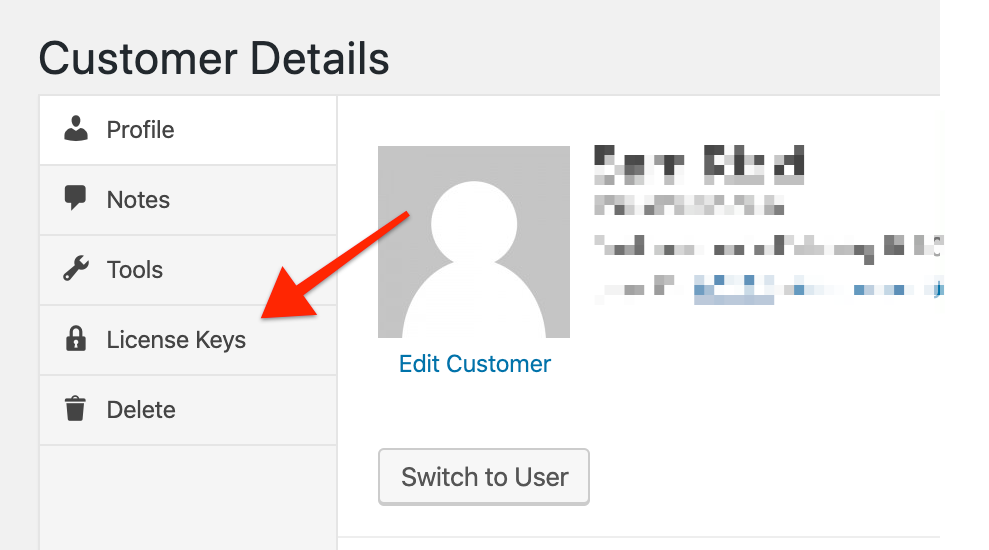
- In the left page menu, click “License Keys”.
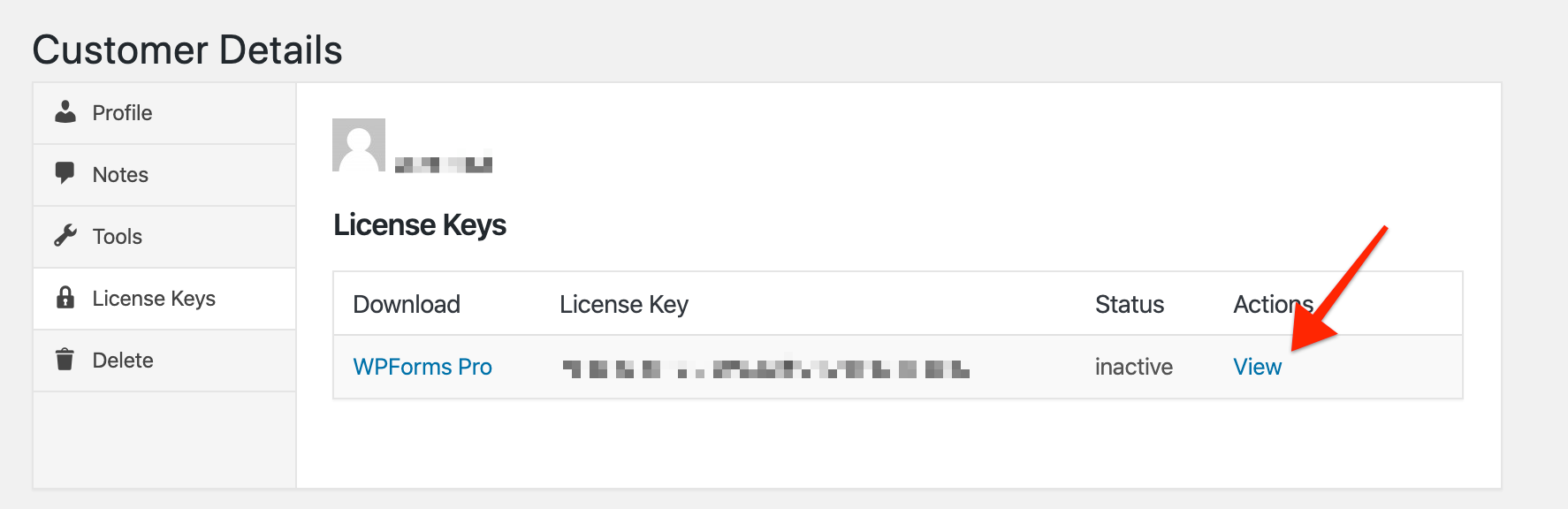
- Under the Actions column, click “View”.
- Under the Licensed URLs section, check if any sites are active.
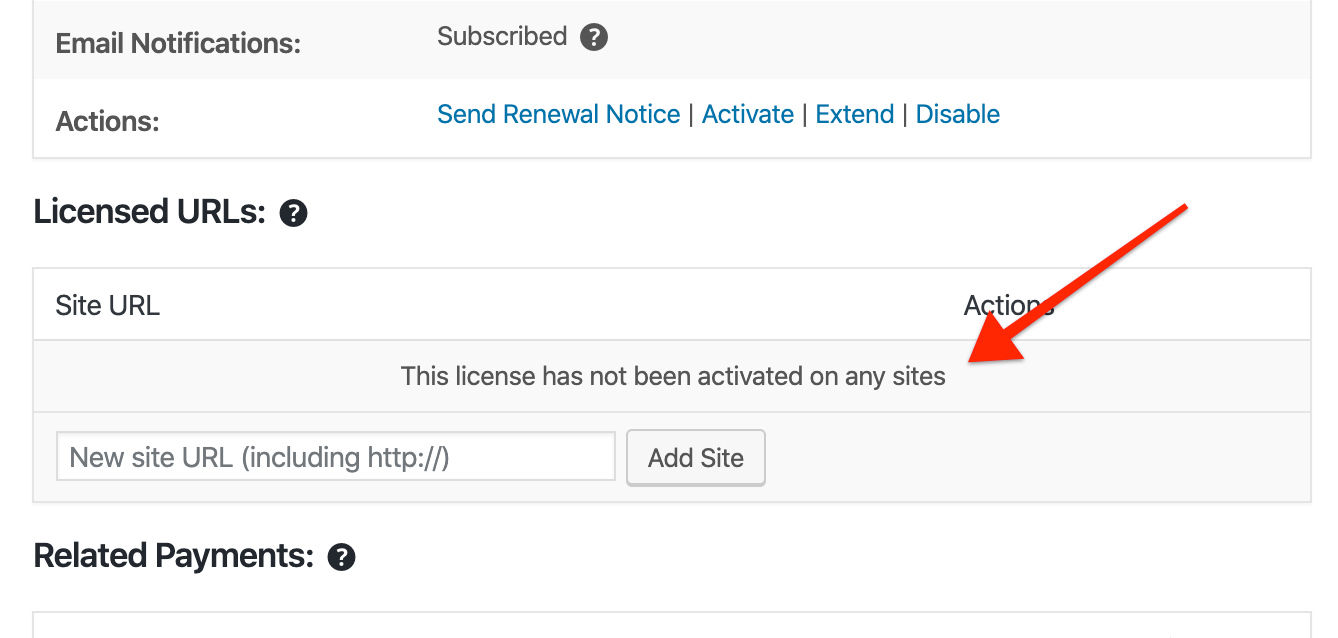
- If no sites are active, go ahead and accept the dispute –which will provide a refund.
- If there are any active sites, click on each site link to open it.
- For WPForms: Once a site is open, add “/?s=wpforms” to the end of the URL and press enter (Here’s an example of what that looks like: demosite.com/?s=wpforms)
- If there are any forms here then you can open the pages where forms are found and screenshot them
- If you’re unsure if the form is WPForms then right click on the page and click View Page source. This will show you behind the scenes of what is on that page/form.
- When you’re on the coded page, Ctrl+F to search for WPForms. When you see WPForms Pro somewhere then that is when you want to submit evidence. Anything else could be Free WPForms on the page.
- Or you can put the full website URL into this detector to look for WPForms on the site
- For WP Mail SMTP: Once a site is open, add this after the URL and press enter – /wp-content/plugins/wp-mail-smtp-pro/assets/images/logo.svg
- This will search the site for any pages where WPForms are embedded. Or for WP Mail SMTP it will bring up a page with our logo and WP Mail SMTP really big across the page.
- For WPForms: Once a site is open, add “/?s=wpforms” to the end of the URL and press enter (Here’s an example of what that looks like: demosite.com/?s=wpforms)
- If there are no search results, go ahead and accept the dispute/provide a refund.
- If there are search results, then open any link(s) to confirm that a form is embedded.
- On the contact form page you’ve found, take a screenshot of the page. Download it and Save file. You’ll include this in the evidence you submit.
- Repeat with any other contact forms you find on the website.
- Once you’ve compiled some evidence, proceed with Submitting Evidence instructions.
Submitting Evidence
(If you’re not Accepting the Dispute then you will submit evidence to Stripe citing why our charge should stand and the customer should not receive a “refund”)
- In the upper right corner, click on “Submit evidence”.
-
- An Evidence Form comes up: here is some helpful information to fill that in.
- I provided the customer with… : Digital products
- Activity Log – Click on this tab in EDD and copy and paste the info into this box
- If there are any blanks re: Cancellation information then use the following information:
- Cancellation policy
- When was the customer shown this policy? The customer agreed to these terms at checkout.
- Why wasn’t the subscription previously cancelled? Subscription remains active, has not been cancelled and no communication or request to cancel was submitted to our support team.
- Cancellation policy
- What are the refund details?
- WPForms Refund Policy
The WPForms no-risk money back guarantee offers that, if at any time within the first 14 days of opening your paid Account you decide that WPForms is not for you, then just let our awesome support team know (we make it easy!).
We will stop your Subscription and issue you a refund. Your request for a cancellation must be received within 24 business hours of the 14 days of the date and time of opening your paid Account. While some refunds may be instant, refund credit can take up to 5 – 10 business days to show up in your credit card statement.
If adequate notice is not received and your credit card is subsequently charged, you will not receive a refund. - WP Mail SMTP Refund Policy
Provided that the White Glove Setup (for Elite Licenses) has not been redeemed, the WP Mail SMTP no-risk money back guarantee offers that, if at any time within the first 14 days of opening your paid Account you decide that WP Mail SMTP is not for you, then just let our awesome support team know (we make it easy!).
Provided that the White Glove Setup (for Elite Licenses) has not been redeemed, we will stop your Subscription and issue you a refund. Your request for a refund must be received within 24 business hours of the 14 days of the date and time of opening your paid Account and in the case of Elite Licenses you must have not redeemed the White Glove Setup. While some refunds may be instant, refund credit can take up to 5 – 10 business days to show up in your credit card statement.
If White Glove Setup is redeemed or adequate notice is not received and your credit card is subsequently charged, you will not receive a refund.
Upon redemption of White Glove Setup (for Elite Licenses) you agree that 50% of the License Fee shall be non-refundable.
- WPForms Refund Policy
- Reason for charge: The customer purchased a subscription that renews annually.
- Product description: WPForms is a drag & drop form builder for WordPress. License costs are per year (annual renewal), as indicated on our pricing page (https://wpforms.com/pricing/).
- Product description: WP Mail SMTP is a WordPress plugin that improves email delivery by using trusted services such as Gmail, Mailgun, Sendgrid, etc to send all website emails. License costs are per year (annual renewal), as indicated on our pricing page (https://wpforms.com/pricing/)
- Upload File(s): Add Screenshots of our product on their website and a Terms of Service file. A recent copy should also be stored in Google Drive: It’s not a bad idea to keep a file on your desktop, downloads or somewhere in your own files for frequent use.
- WPForms
- WP Mail SMTP
- If applicable, attach screenshots of any of the following
(multiple files can be merged into a single PDF).- Relevant Help Scout conversations – by customer or support team
- Screenshot(s) of page(s) with a WPForms form embedded
- For WP Mail SMTP: add this after the URL to find WPMS on site – wp-content/plugins/wp-mail-smtp-pro/assets/images/logo.svg Take a screenshot of the whole screen showing WP Mail SMTP and the URL and circle the URL and put an arrow pointing to the WP Mail SMTP part in that URL
- There is no other information besides a possible previous conversation to screenshot for WP Mail SMTP.
- Any other relevant details you may have found and collected
- An Evidence Form comes up: here is some helpful information to fill that in.

- Duplicate
-
-
- Why is this payment a valid charge, and not a duplicate?
- When the customer purchased their WPForms subscription last year, they agreed to an automatic renewal, and here’s where we share how this works on the checkout page: https://a.supportally.com/S1bkA8 I’m sorry if this felt unclear in any way!
In the screenshot we also provide an option to cancel auto-renewal. We want to always leave this option open for our customers, so the option is right in their account. Again, I apologize if this didn’t feel clear to them upfront.
To provide advanced notice, we send out a reminder email a month before their subscription renewal (in addition to the email sent after the renewal is processed). If they don’t find either of these emails in their inbox, then they may have been filtered by the customer’s email service’s spam protection settings, unfortunately.
- When the customer purchased their WPForms subscription last year, they agreed to an automatic renewal, and here’s where we share how this works on the checkout page: https://a.supportally.com/S1bkA8 I’m sorry if this felt unclear in any way!
- Why is this payment a valid charge, and not a duplicate?
-
“Additional Information” for Stripe
Copy and paste any of the following notes into the Additional Information section at the bottom of the form. Be sure to customize/expand these items to make sense for the specific case.
- This customer is still using our software on their website at the time of this writing. A form created with WPForms (our software) is embedded on their website [URL] (screenshot attached).
- Further, the charge was from a renewal of a subscription that the customer purchased on [PURCHASE DATE] and renewed on [RENEWAL DATE]. This current charge is more than 30 days old and does not meet the 14-day money back guarantee in our Terms of Service (attached)
A renewal reminder email was sent out 30 days before this renewal payment, and a payment confirmation email was sent out immediately after payment.
- FOR WP MAIL SMTP: This customer still has our premium software installed on their website [URL] at the time of writing this. https://a.cl.ly/bLuw51d0 {remember to create a new screenshot for each case}
IMPORTANT: After submitting evidence, make a note on the record of evidence spreadsheet
PayPal Disputes
- To open PayPal payment disputes, click here (or log into PayPal and go to Activity > Resolution Center > Open Cases).
| Note: You’ll have to be logged into the relevant account (WPForms or WP Mail SMTP) in order to see those separate disputes. |
- Under “Open Cases”
- You’ll work with items listed under “Response Required”
- Add this number in the Billing scorecard.
- Right Click on the Respond button for more details.
- Now, the tricky part… Trace the details to an account in EDD (on the product site). The easiest way to begin is to right click on the Transaction ID to open the Transaction Details page in a new tab.
- Scroll down to the payment details section then copy & paste the Recurring Payment ID into the search bar on our Subscription page in EDD to find the customer account.
Note: The account lookup can sometimes be a complicated process, because a customer’s PayPal email doesn’t necessarily match the EDD account email. Try using the Recurring Payment ID and then check Payment History in EDD for something– if stuck, ping Lisa W in #wpforms-billing on Slack for help.
- When you find the WPForms or WP Mail SMTP account, copy & paste the account email address into a new Help Scout conversation.
- If the dispute meets our refund criteria (below in #6), do that here in Help Scout (as a normal refund and cancellation). This minimizes our dispute rates.
- If the payment was within 30 days of the dispute being submitted, refund like a normal refund would be processed and double check that the subscription is Cancelled.
- If required to add a message to the buyer, keep it simple ie: “Your payment has been refunded.”
- If the payment was more than 30 days before the dispute was submitted, then follow the Compiling Evidence steps.
“Response Required” Tab:
- Respond in PayPal for all situations. This may look different depending on the type/stage of dispute.
- Most times you will respond that you have already issued a refund– via PayPal and then the Open Cases queue will adjust to show only cases that still require a response.
- You will receive an email in your Help Scout Mine inbox confirming the refund.
- IMPORTANT: If you do not provide a refund but rather submit evidence for charge to be upheld:
- Make a note on the record of evidence spreadsheet under the PayPal tab
Marking disputes WON or LOST
- About once a month go back through the record of evidence spreadsheet and check on all cases that are marked “reviewing” to see if a decision has been made yet.
- Click on the link attached to the email address in your spreadsheet
- Click into the disputed charge to see if it’s been decided
- If the case is still “being reviewed” move on to the next one
- If the case was not decided in our favor mark it LOST
- In a new Help Scout conversation, open the EDD payment page for this payment. In the right sidebar, set the Status dropdown to “Refunded” and check the Cancel Subscription box. However, do not check the box labeled “Refund Charge in Stripe” (you already went through this process in a different way, by accepting the dispute).
- Click the blue “Save Payment” button.
- Click into the Subscription Link at the top right of the payment page. (Or, before working through Step 1, right click on the Subscription link to open it in a new tab awhile so that while HS is thinking about updating the payment info you can Hard cancel as noted in this step)
Click on the Stripe Profile ID link and Hard Cancel the subscription in Stripe.
- Close all those tabs ^ Payment page, Subscription page & Stripe page
- Refresh your HS ticket to make sure it shows Cancelled and Refunded.
- Highlight the LOST cell in Gray so you know that the subscription has been Hard cancelled
- If the case was decided in our favor, mark it WON
- In a new Help Scout conversation, click on the Stripe subscription link and then on the Stripe Profile ID (as shown above). OR click into the customer overview page in Stripe
- Hard cancel in Stripe
- Refresh your HS ticket to make sure it shows Cancelled. (if you went in to do the Hard cancellation through Help Scout)
- Highlight the cell to the right of the word WON in Gray so you know the subscription has been Hard cancelled
- Mark the Win on our Billing Scorecard and announce to the Ops team your win in Slack! 🙂
- Close the ticket.